


Description
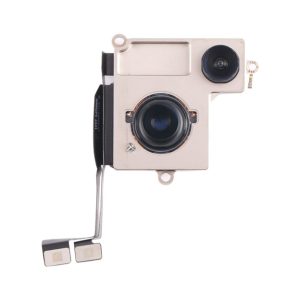
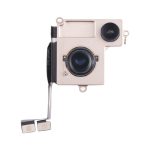
iPhone 15 Back Camera – All Issues and Solutions
Introduction
The iPhone 15 is geared up with an advanced rear digicam machine that gives customers with great photo satisfactory and recording capabilities. However, various problems can get up over the years, affecting the digital camera’s functionality. In this manual, we will undergo common issues with the iPhone 15 returned digital camera, their feasible causes, and how to repair or update them.
Common Issues with the iPhone 15 Back Camera
1. Camera Shows Black Screen
- When opening the camera app, the screen remains black with no image displayed.
- The camera does not function in any mode.
- This may be because of a software program glitch or physical harm to the digicam module.
2. Blurry or Unclear Images.
- Photos appear hazy or unclear, even in good lighting conditions.
- Autofocus does not paintings as anticipated.
- Possible reasons include a grimy or damaged lens, software problems, or a faulty stabilizer.
3. Camera App Crashes or Freezes
- The camera app freezes when opened.
- The phone restarts after opening the camera app.
- This could be due to a corrupt app cache, operating system errors, or hardware issues.
4. Autofocus Not Working
- The camera struggles to focus or focuses incorrectly.
- Objects in the image appear blurry even when the camera is steady.
- Possible reasons consist of software malfunctions or damage to the lens.
5. Optical Image Stabilization (OIS) Problems we fix
- Photos or motion pictures seem shaky, inspite of a regular hand.
- Could be due to a faulty optical image stabilizer.
- If the camera makes clicking noises, it may indicate hardware damage.
6. Scratched or Damaged Lenses
- Physical scratches or cracks on the camera lens cause blurriness or light flares in images.
- Dirt or moisture may have entered the camera module.
7. Camera Displays Incorrect Colors or Lines
- Photos show abnormal colors or horizontal/vertical lines on the screen.
- This may be caused by sensor failure or damaged internal components.
8. Flash Not Working
- The LED flash does not work when taking pictures or as a flashlight.
- Could be due to hardware malfunctions or incorrect settings.
Possible Solutions
Software Solutions
- To check this, restart the phone if the problem is temporary.
- Update iOS in the latest version.
- Step.1 Settings> Step.2 Camera> Step.3 Step.3 Go to the reset camera settings and clean the camera app.
- Step.1 Settings> Step.2 General> Step.3 Transfer or reset iPhone> Step.4 Reset all settings and reset all settings.
Hardware solution
- Carefully easy the digital camera lens with a microfiber fabric.
- Check bodily harm to the camera lens and module.
- Gently clean the digital camera module the use of compressed air or a tender brush to do away with any dirt or dust.
- To determine this, check the digicam in one-of-a-kind apps if the problem is associated with software or hardware.
- If the hassle persists after troubleshooting, exchange the digicam module.
IPhone 15 Crack Back Camera Repair – a comprehensive guide
Common Issues Caused by a Cracked iPhone 15 Back Camera
1. Blurry or Distorted Images
- A cracked digicam lens reasons light refraction, main to blurry or distorted photos.
- Dust or debris can enter thru the cracks, worsening the photo satisfactory over time.
2. Lens Flare and Reflection Issues
- Cracks on the lens cause unnatural reflections or lens flares in photos and videos.
- Direct light sources may create streaks or glares across the image.
3. Camera Unable to Focus
- A damaged lens may prevent autofocus from working correctly.
- Objects may appear permanently out of focus, even in optimal lighting conditions.
4. Internal Dust or Moisture Damage
- Cracks inside the lens allow dust, dust, and moisture to enter the digicam module.
- This can motive in addition troubles, which include sensor malfunction and corrosion.
5. Flash and Low-Light Performance Degradation
- A cracked lens scatters the flash light inconsistently, affecting low-light photography.
- Poor night-mode performance because of wrong mild consumption.
6. Complete Camera Failure
- Severe harm can also result in a entire loss of digicam capability.
- The camera app can also crash or show a black display because of hardware failure.
Diagnosing the Severity of the Damage
Step 1: Visually Inspect the Lens
- Examine the lens for cracks, scratches, or lacking portions.
- If the crack is minor and does not intervene with picture super, cleaning is probably enough.
- If the crack affects the whole lens, alternative is recommended.
Step 2: Test the Camera Performance
- Capture images and films in one-of-a-kind lights conditions.
- Check for autofocus problems, distortions, or blurriness.
Step 3: Assess Internal Damage
- Look for dirt debris or moisture below the glass lens.
- If moisture is present, drying and cleansing the inner module can be important.
Repairing a Cracked iPhone 15 Back Camera Lens
Option 1: Temporary Fixes (If Repair Is Not Immediately Possible)
- Apply obvious adhesive tape over the lens to prevent further dirt intrusion.
-
Use easy nail polish to seal minor cracks briefly (no longer advocated for prolonged-time period use).
Option 2: Replacing the Back Camera Lens
Required Tools:
- Precision screwdriver set
- Plastic pry gear
- Tweezers
- Suction cup
- Isopropyl alcohol and lint-free cloth
- Replacement digicam lens (OEM encouraged)
-
Heat gun (optional, for loosening adhesive)
Step-by way of-Step Lens Replacement:
- Turn Off the Device – Power down the iPhone 15 and get rid of the SIM card tray.
- Remove the Back Glass Panel –
- Use a warmness gun to softly warm the edges of the lower back panel.
- Insert a plastic pry device to raise the glass carefully.
- Be careful to avoid destructive the adhesive or other components.
- Detach the Damaged Lens –
- If the lens is heavily cracked, use tweezers to put off the damaged glass portions.
- Apply isopropyl alcohol to smooth the surface of residual adhesive.
- Install the New Lens –
- Align the alternative lens with the camera module.
- Secure it using adhesive designed for phone maintenance.
- Reassemble the Phone –
- Reattach the lower back panel and press lightly to make sure a secure healthy.
- Wait for adhesive to set before turning the device on.
- Test the Camera –
-
Capture images and test for any ultimate distortions or issues.
-
Replacing the Entire Camera Module (If Lens Replacement Doesn’t Work)
If the digital camera nonetheless doesn’t paintings properly after lens replacement, the inner module may need to be replaced.
Required Tools:
- Pentalobe screwdriver
- Suction cup and plastic pry equipment
- Tweezers
- Replacement iPhone 15 camera module
- Heat gun (optionally available)
Steps for Camera Module Replacement:
- Turn Off the Phone and Remove the Display
- Unscrew the pentalobe screws near the charging port.
- Use a suction cup to gently lift the screen and detach it cautiously.
- Disconnect the Battery and Remove the Camera Module
- Locate the digital camera module and get rid of its screws and connectors.
- Detach the digicam from the motherboard.
- Install the New Camera Module
- Align the substitute module well and stable the connectors.
- Reassemble the tool and take a look at for any free components.
- Test the Camera
- Restart the phone and open the digital camera app.
- Ensure autofocus, flash, and stabilization functions work well.
Preventing Future Damage to the iPhone 15 Back Camera
- Use a protecting digital camera lens cover to defend in opposition to scratches and cracks.
- Avoid putting the smartphone on rough surfaces with out a shielding case.
- Keep the digital camera lens clean the usage of a microfiber fabric.
- Keep the digital camera lens clean the usage of a microfiber fabric.
When to Seek Professional Repair
- If the crack is severe and influences digital camera performance.
- If moisture or dust has penetrated in the module.
- If the digicam still malfunctions after lens or module alternative.
-
If you lack the equipment or knowledge to perform the restore accurately.
Professional restore offerings make sure right installation of digicam components, preventing in addition damage and ensuring ultimate performance.
Conclusion
A cracked iPhone 15 lower back camera lens can significantly impact photograph pleasant and ordinary telephone functionality. While minor cracks can be quickly managed, complete replacement is the quality long-term answer. With the proper gear and careful execution, replacing a cracked lens or even the entire digital camera module can repair your iPhone’s images capabilities. If DIY repairs seem challenging, seeking professional assistance is enormously endorsed to keep away from similarly harm and make certain a amazing repair.
1. iPhone Screen Repair
Common Screen Problems
- Cracked or shattered screen after a fall.
- Unresponsive touchscreen or sluggish reaction.
- Flickering or black display after an impact.
- Dead pixels or show discoloration.
Causes of Screen Damage
- Accidental drops and impacts.
- Pressure from heavy gadgets.
- Exposure to water or moisture.
- Manufacturing defects (in uncommon cases).
Screen Repair Process
- Assess the damage – Look for cracks, touch issues, or lifeless pixels.
- Disassemble the device – Remove the show using precision equipment.
- Replace the broken show screen – Install a extraordinary show display.
- Reassemble and take a look at – Ensure the touchscreen and show feature properly.
When Should the Screen Be Replaced?
- If deep cracks have an impact on usability.
- If touch sensitivity is weakened.
- If the screen sparkles or stays black.
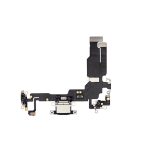
2. IPhone Charging Port Repair
Common Charging Port Problems
- iPhone does not fee or fees slowly.
- Loose connection amongst cable and port.
- Overheating even as charging.
- No information switch at the same time as associated with a laptop.
Causes of Charging Port Issues
- Dust, dirt, or lint can increase within the port through the years.
- Constant plugging and unplugging can result in put on and tear.
- Moisture publicity can also purpose corrosion and connection issues.
- Internal circuit failure due to strength fluctuations.
Charging Port Repair Process
- Check the port for any dirt, corrosion, or damage.
- Use compressed air or a tender brush to clean it gently.
- Insert or update the charging port if vital.
- Test the tool with multiple cables to ensure proper function.
When Should the Charging Port Be Replaced?
- If cleaning does not remedy the charging problem.
- If the cable does not stay securely associated.
-
If wi-fi charging works but stressed out charging does no longer.
3d. IPhone Rear Camera Repair
Common Rear Camera Problems
- Blurry or out-of-awareness photos.
- Black screen while establishing the digital camera app.
- Cracked or scratched digital camera lens.
- Camera app freezes or crashes.
Causes of Rear Camera Issues
- Physical impacts detrimental the lens or sensor.
- Moisture or dust in the digicam module.
- Software system defects affecting camera performance.
-
Optical Image Stabilization (OIS) failure.
Rear Camera Repair Process
- Diagnose the issue – Test focus, stabilization, and image quality.
- Clean the lens to remove dust or fingerprints.
- Replace the camera module if necessary.
- Test the camera function to ensure clear and sharp images.
When Should the Rear Camera Be Replaced?
- If pictures remain blurry despite cleaning.
- If the camera does not open or crashes frequently.
- If there are physical cracks or internal sensor damage.
4. iPhone Front Camera Repair
Common Front Camera Problems
- Blurry selfies or poor video quality.
- Face ID not working.
- Black screen in the camera app.
- Front camera does not switch from the rear camera.
Causes of Front Camera Issues
- Physical damage or scratches on the lens.
- Software glitches affecting camera switching.
- Exposure to moisture causing a foggy lens.
- Damage to the Face ID sensor due to impact.
Front Camera Repair Process
- Test the camera performance – Check image quality and Face ID functionality.
- Clean the lens to remove dirt or fingerprints.
- Replace the front camera module if necessary.
- Calibrate Face ID and test image clarity.
When Should the Front Camera Be Replaced?
- If selfies are always blurry or washed out.
- If Face ID does not work and cannot be fixed via software.
- If the front camera does not switch properly in the app.




Reviews
There are no reviews yet.